
🧭 How Store Customization Works
When you create a new shop:- A Starter Theme is applied by default
- You can switch themes anytime
- You can edit content and styles safely without breaking the layout
🏪 Accessing the Theme Editor
To customize your storefront:- Open your Seller Dashboard
- Go to Themes
- Click Edit Storefront
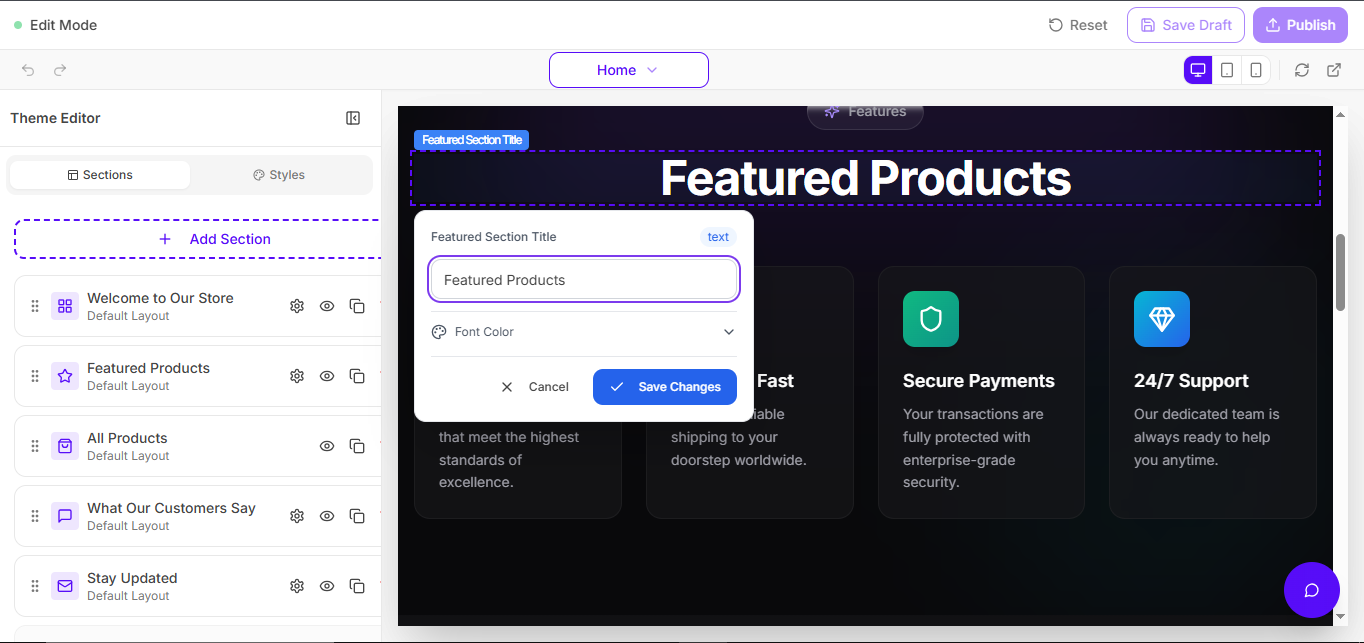
Tip: If you don’t see editing tools, confirm you’re logged into the Seller Dashboard.
✨ Step 1 — Select or Change Theme
Shopi provides professionally designed templates optimized for:- ✅ Mobile responsiveness
- ✅ Conversion-friendly layouts
- ✅ Fast loading performance
- ✅ Modern UI consistency
✅ Default Theme
All new shops start with:Starter ThemeYou can change themes anytime. Your storefront remains structured and stable.
✏️ Step 2 — Edit Store Content (Click-to-Edit)
Shopi editing is intentionally simple:Click what you want to edit. Change it. Save. Publish.You can edit:
No drag & drop. No complex builders.
- Text content
- Images
- Buttons and links
- Product sections
- Marketing sections
🚀 Why Shopi Avoids Drag & Drop Builders
Drag-and-drop builders often cause:- Broken layouts
- Slow storefront performance
- Confusing editing experience
- Inconsistent design
✔ Speed
✔ Simplicity
✔ Design consistency
🧱 Step 3 — Add New Sections (+ Add Section)
Shopi storefronts are modular. You can expand your layout using pre-built sections.➕ Add Section Feature
Click:+ Add SectionThen choose a category such as:
- Content
- Products
- Engagement
- Media
- Hero banners
- Product showcases
- Search blocks
- Blog posts
- Testimonials
- Custom content blocks
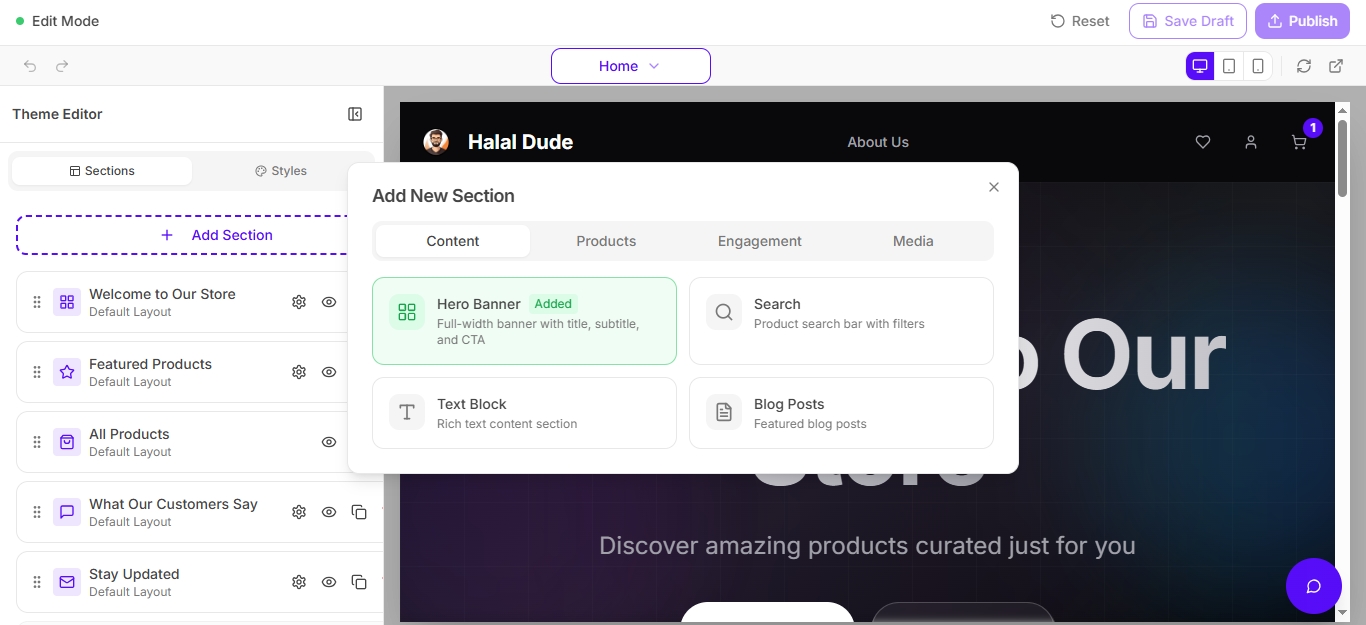
If you want a cleaner docs look later: upload a separate screenshot focused only on the “Add New Section” popup.
🎨 Step 4 — Advanced Customization (Styles)
Shopi includes advanced styling controls for brand customization. You can customize:- Fonts (family/size/weight)
- Font colors and brand palette
- Spacing (padding/margins)
- Page style (layout and appearance)
- Section styling and UI feel
🔐 Security: Protected Theme Editing
Shopi protects storefront editing using multiple security layers.🛡️ Signed & Secure Edit Access
Even if someone gets the edit URL (unlikely), they still cannot edit without valid dashboard access.- Edit URLs are signed
- Access requires authentication
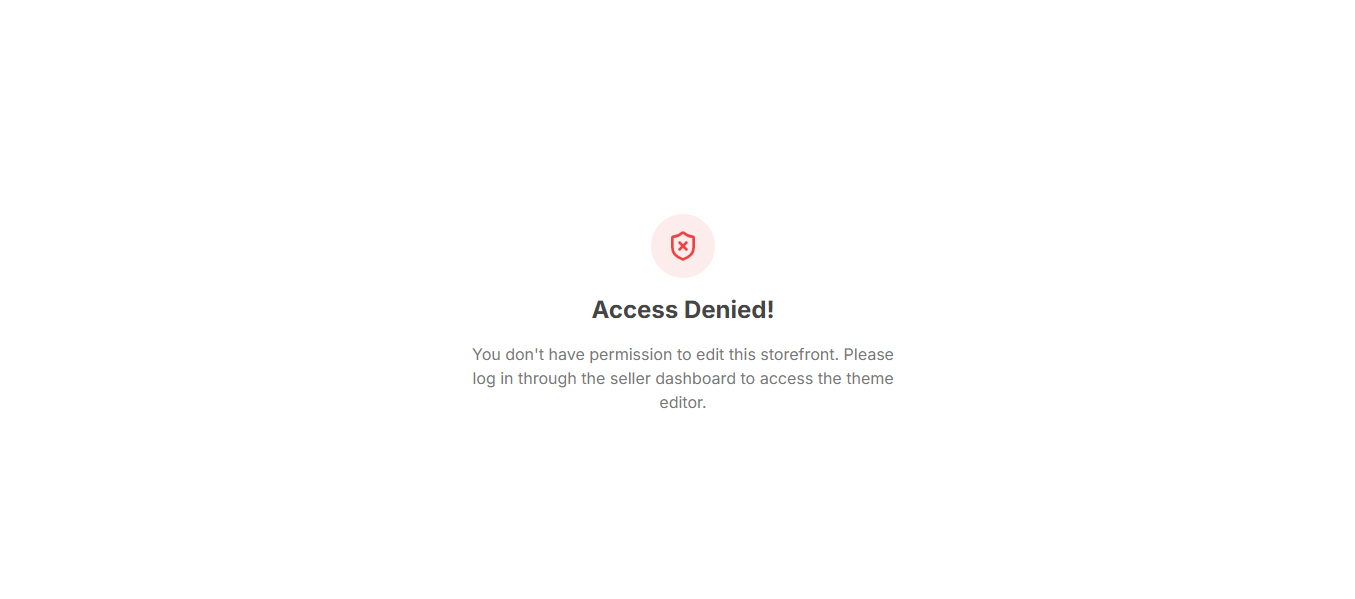
- Unauthorized users are blocked
🚫 What Unauthorized Users See
🔑 The Only Way Someone Can Edit Your Store
They must:- Log into your Seller Dashboard
- Have valid permissions
The only realistic way someone edits your store is if you share your password. Don’t.
🔒 Password Security (Hashing + Salt)
Shopi protects seller accounts using secure password storage:- Password hashing
- Salt encryption
- Session authentication tokens
- Secure access controls
Shopi Security Architecture
Learn how Shopi protects seller accounts, storefronts, and business data using secure infrastructure.
🤖 AI + SEO Friendly Storefront Architecture
Shopi themes follow a structured storefront architecture designed to improve:- Faster storefront loading
- Better search engine indexing
- Better AI understanding of your content
- Higher SEO ranking potential
✅ Best Practices for Store Customization
To improve conversions and performance:- Use consistent brand colors
- Upload high-quality images
- Keep the homepage simple and focused
- Highlight best-selling products/services
- Avoid adding too many sections (clutter reduces sales)
❓ Troubleshooting
If you cannot edit your storefront:- Confirm you are logged into the Seller Dashboard
- Refresh and try again
- Check whether your session expired
- Confirm you are editing the correct store